Quality Assurance (QA) is collaborating with departments and process owners to migrate over 600 business processes from DocuSign to Adobe Sign. Our team is facilitating a smooth transition by providing guidance, support, and resources tailored to each area’s operational needs. This migration will streamline workflows, strengthen compliance, and reduce manual tasks. Our goal is to empower the campus with the tools and knowledge needed for a more efficient experience.
IMPORTANT ANNOUNCEMENT
With guidance from Administration & Finance leadership, we are extending the deadline for retrieving completed DocuSign documents to June 30, 2026.
To learn more about the updated timeline and next steps, please visit the Announcements page.
Migration Overview
Migrated business processes are listed in the Migrated Processes in Adobe Sign spreadsheet. As migration continues, new processes will be added to the spreadsheet. We encourage the campus to check this page regularly for updates.
To ensure a smooth migration to the Adobe Sign Production Environment, departments and process owners are required to:
- Complete end-to-end testing in the Adobe Sign Sandbox environment.
- Communicate regularly with QA to resolve any issues.
- Confirm readiness and alignment with all stakeholders.
Once these items are complete, QA coordinates with the Adobe Sign Migration Team to copy the approved business processes from Sandbox to the Adobe Sign Production environment, where they can become fully operational.
Getting Started with Migrated Processes
To help the campus get started, QA has created the following quick instructions for using migrated processes in Adobe Sign. If you don’t find the instructions you need, please contact us at qateam@sfsu.edu for assistance. Our team is here to provide additional guidance and troubleshoot issues during migration.
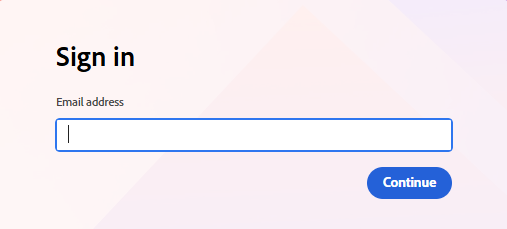
Start by logging in to Adobe Sign—this ensures secure access to campus workflows and resources.
- Navigate to Adobe Sign.
- Enter your SFSU email address in the Email field.
- Click Contine. Adobe Sign will detect your account settings and redirect you to the SFSU multi-factor authentication page.
- Authenticate using your SFSU credentials.
Adobe Sign provides two key features to route and complete SFSU's business process: Workflows and Web Forms
| Feature | Definition |
| Workflow | Specifies the routing order, recipient roles, and settings for sending the template. |
| Web Form | A template that can be embedded on a department's website and accessed through a shared URL link. |
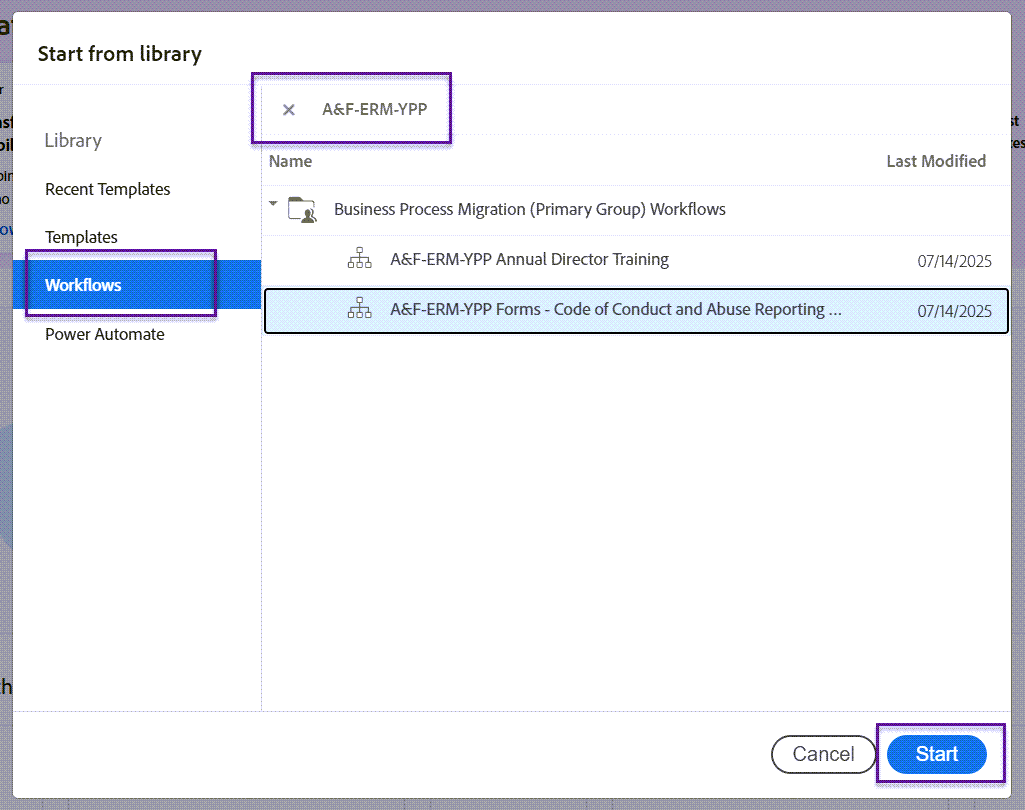
When accessing a workflow and/ or web form, QA recommends searching using the following naming convention: [Cabinet Area]-[Department Name]-[Business Process Name]
- Examples:
- A&F-ERM-Service Provider Insurance Waiver Request Form
- AA-GradStudies-Certificate Approved Program (CAP) Form
- SAEM-DSL-Registered Student Organization-Advisor Agreement Form
- UA-UA-Gift Acceptance Form ($1,000 - $4,999)
For guidance on completing specific workflows or web forms, please contact the responsible department and/or business process owner. If you need additional assistance or have questions regarding the Adobe Sign platform, feel free to reach out to qateam@sfsu.edu.
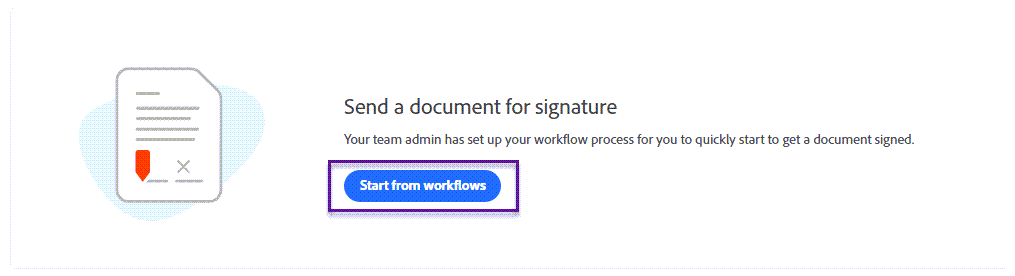
Once logged in, you can easily launch a workflow to begin the signing process for the department's form.
- On the main page, select “Start from workflows.”
2. In the pop-up window, click “Workflows” and use the search bar to locate your workflow.
3. Select the workflow and click “Start.”
4. Enter (and modify) signer information.
5. Click “Send Now” to initiate the signing process.
Before sending, campus users may customize the agreement name and recipient details to ensure accuracy and compliance.
Agreement Name
- Instructions:
- Enter the recipient's name after the agreement name.
- Best practice:
- Use clear naming conventions for easy identification and processing.

Recipient Information
- Best practice:
- Fields marked with an asterisk (*) are required.
- Fields without an asterisk are optional.
- Verify email addresses and roles to avoid delays.
Processes Continuing in DocuSign
Departments that rely on the DocuSign-OnBase integration—specifically Human Resources and the Office of Student Financial Aid—will continue to access their DocuSign business processes beyond December 15. This approach prevents the need to manually process more than 25,000 documents through Spring 2026.
Additionally, Accounts Payable and University Corporation will migrate their processes after the successful launch and implementation of two major projects: CSUBuy P2P in January 2026 and the Concur Enhancement project in March 2026. This phased approach ensures that payment workflows are properly established and operating effectively before transitioning to Adobe Sign.
For a list of processes that will remain available in DocuSign after December 15, view the Remaining Business Processes spreadsheet.